Setup guide
Set up your FXer Expert Advisor and start syncing trades in minutes.
You can contact us contact us or join our Telegram channel for quicker response.
MetaTrader 4
Latest: v3.1
To get started with MT4, follow these instrustions:
Install it from MQLs website MQL5 Market and follow steps 8-10
Alternatively you can install in manually:
- Download the Expert Advisor from FXer MT4 EA
- Open your Metatrader
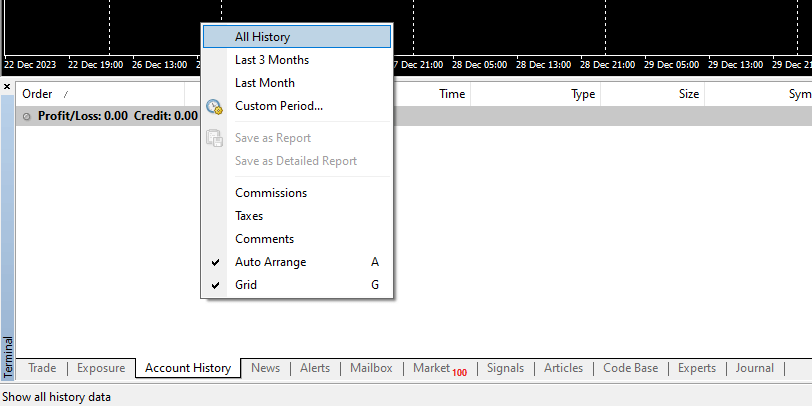
- Make sure you have All History selected from Account history tab
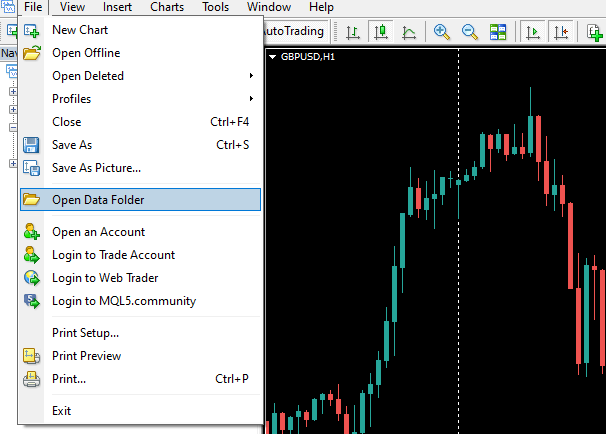
- Open Metatraders Data Folder
- Navigate to "MQL4 -> Experts" folder and move downloaded EA there
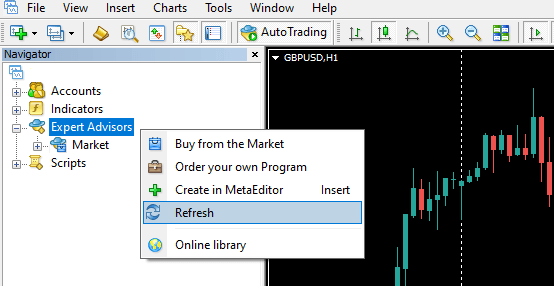
- Go back to Metatrader and refresh the navigator window
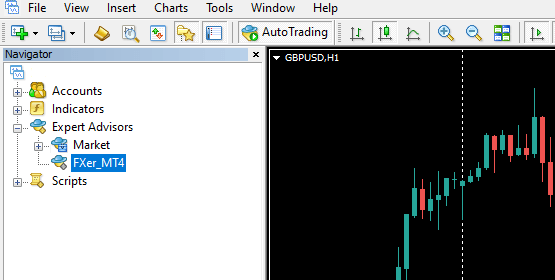
- You should see the Expert Advisor in the navigator window now
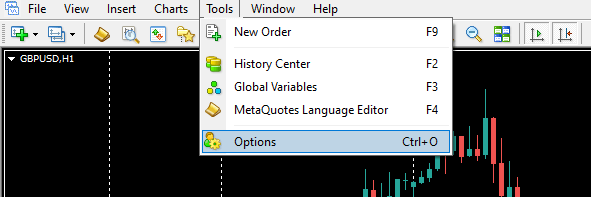
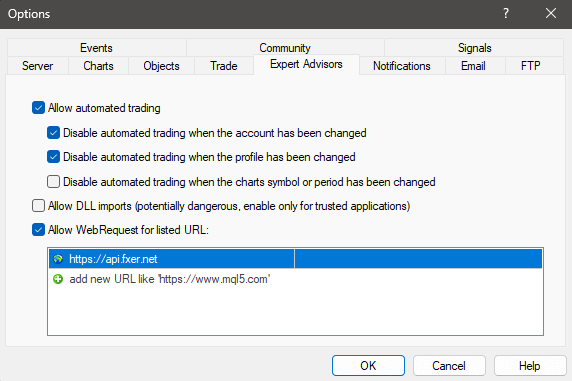
- Allow "https://api.fxer.net" url in "Tools -> Options -> Expert Advisors"
- Turn on Algo Trading and drag the Expert Advisor to any chart
- Fill in API token which you can generate under your profile when you log in to FXer
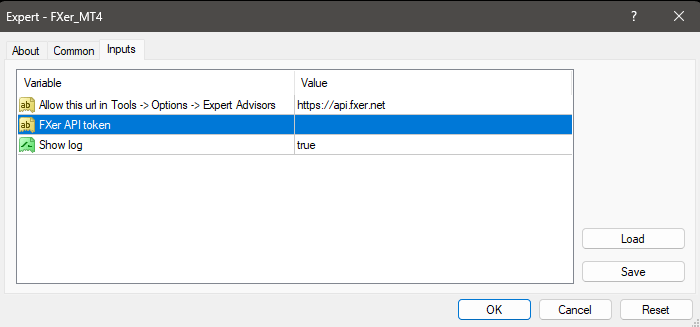
- Click OK and your account history is readable on FXer in approx. 5min
- Expert Advisor will upload new data to FXer based on the interval in your plan
MetaTrader 5
Latest: v5.2
To get started with MT5, follow these instrustions:
Install it from MQLs website MQL5 Market and follow steps 7-10
Alternatively you can install in manually:
- Download the Expert Advisor from FXer MT5 EA
- Open your Metatrader
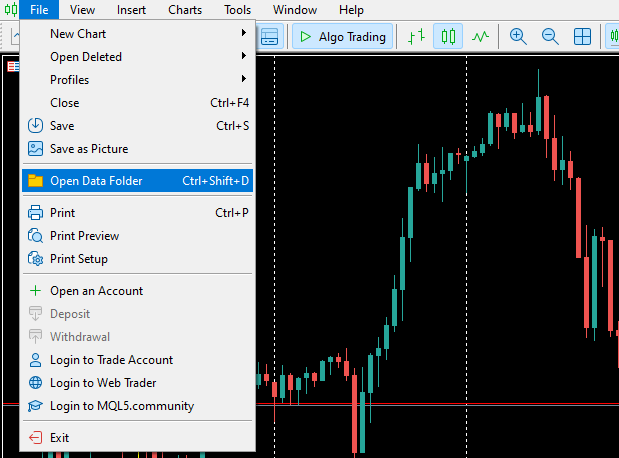
- Open Metatraders Data Folder
- Navigate to "MQL5 -> Experts" folder and move downloaded EA there
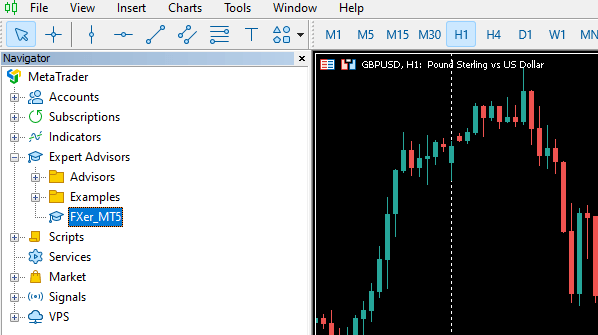
- Go back to Metatrader and refresh the navigator window
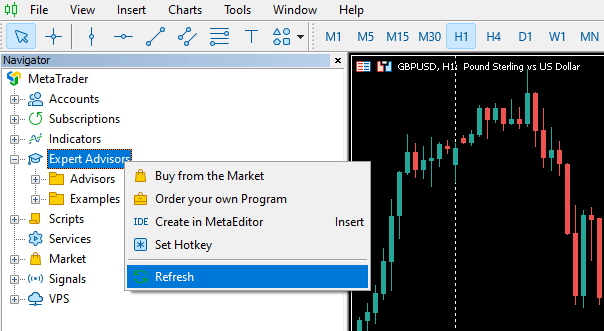
- You should see the Expert Advisor in the navigator window now
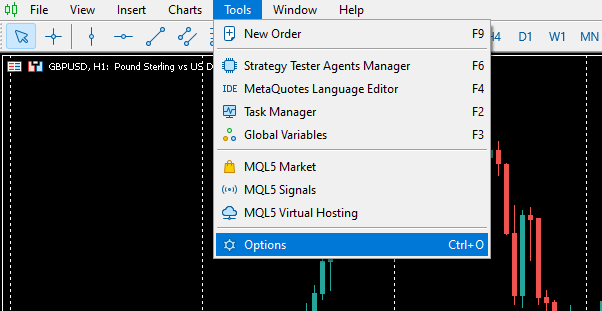
- Allow "https://api.fxer.net" url in "Tools -> Options -> Expert Advisors"
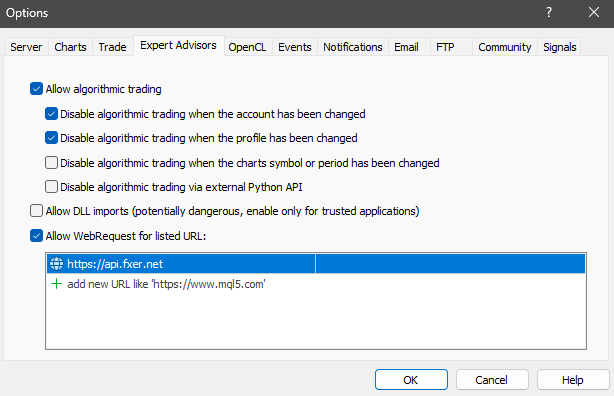
- Turn on Algo Trading and drag the Expert Advisor to any chart
- Fill in API token which you can generate under your profile when you log in to FXer
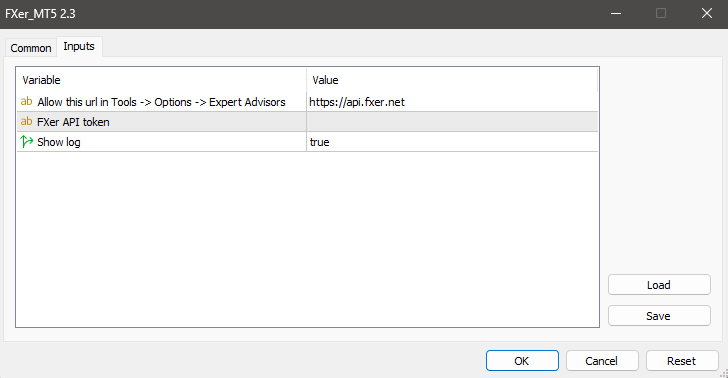
- Click OK and your account history is readable on FXer in approx. 5min
- Expert Advisor will upload new data to FXer based on the interval in your plan
cTrader
OAuth — no EA needed
cTrader connects via secure OAuth — no Expert Advisor or password sharing required.
- Log in to FXer and go to your Dashboard
- Click "Add account" and select cTrader
- You will be redirected to cTrader to authorize FXer
- Grant read-only access — FXer can only view your trade history
- Your account syncs automatically within a few minutes
Is my account safe?
Read-only sync. The FXer Expert Advisor can only read your trade history — it cannot place, modify, or close trades, and cannot access your funds. cTrader uses secure OAuth authentication — you never share your password with FXer. All data is encrypted in transit and at rest.